Step 1 – Download the CPOMS Authenticator
Download the app on your phone by searching for ‘CPOMS Authenticator’ using either the App Store (for Apple devices) or the Play Store (for Android or Google devices).
Step 2 – Log into CPOMS on a separate device
Using another device (such as a desktop or laptop) log into CPOMS. https://solsch.cpoms.net
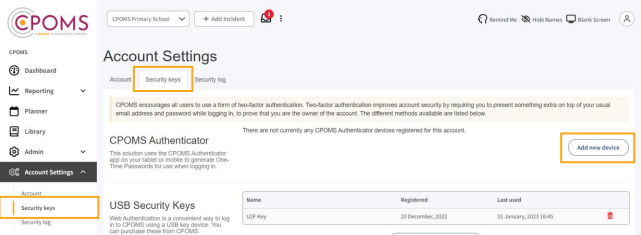
Once you have logged in click on ‘Account Settings’ section, and then click on the ‘Security Keys’ tab.
Under the sub-heading of CPOMS Authenticator click on ‘Add new device’.
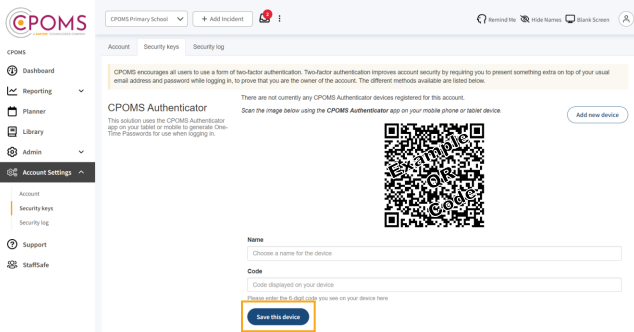
You should now see a QR code on the screen, you will scan this using your phone.
On your phone: Open the CPOMS Authenticator app and press ‘Scan a QR Code’
If asked, please allow the app to make use of your phone’s camera.
Point the camera at the QR code. If successful, the app will start generating random numbers.
This will change every 30 seconds.
On your other device: under the QR code on screen, enter a name for your device.
In ‘Code’ please enter the six-digit code that your phone is displaying.
Finally click ‘Save this device’
You may see that ‘Unverified’ will appear next to the device until you use the app to login.
Step 3 – Elevate Your Access
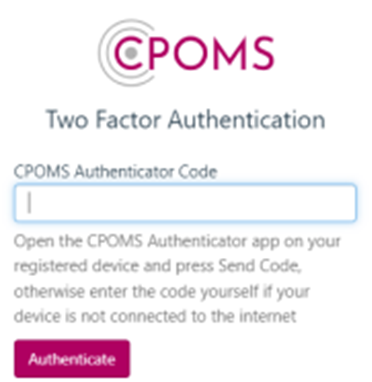
When you next log into CPOMS you will be asked to authenticate using the app. When prompted, please enter the six-digit code from your app and click ‘Authenticate’.
The six-digit code will change every 30 seconds.
What if I have a new phone?
If you have a new phone and need to reset your CPOMS Authentication, please contact the IT helpdesk at help@solsch.org.uk
OR Call
Ext. 248 – Senior School
Ext. 313 – Prep School and one of the team will be able to assist.
Was this article helpful?
That’s Great!
Thank you for your feedback
Sorry! We couldn't be helpful
Thank you for your feedback
Feedback sent
We appreciate your effort and will try to fix the article