This guide will help you setup your two-factor authentication for iSAMS.
Click here to download the guide as a printable .pdf
If you need to reset your two-factor authentication, please visit the IT Helpdesk, phone on ext. 248, or email help@solsch.org.uk
Log in using your school username and password (NOT email).
iSAMS will then email you a one-time six-digit code to enter.
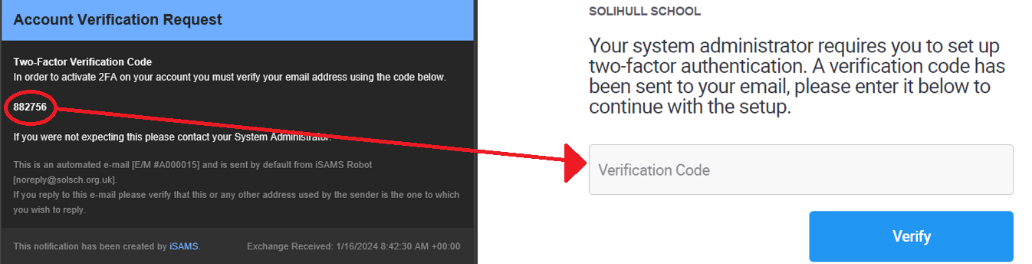
You will then be given a QR code to scan with your phone.
We recommend that you use Microsoft Authenticator which can be downloaded from the App Store for iOS devices, or the Play Store for Android devices.
To scan the QR code open Microsoft Authenticator on your phone, and press the plus in the top right corner.

From the list choose ‘Other’
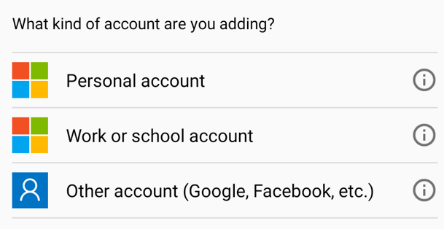
When the screen displays your camera, scan the QR code.
At this stage you may be asked to grant permission for the app to use your camera, press Allow.
The authenticator will now display a six-digit code to enter to iSAMS.
This will change every 60 seconds and will be how you authenticate if accessing iSAMS from outside of the school’s network.
Was this article helpful?
That’s Great!
Thank you for your feedback
Sorry! We couldn't be helpful
Thank you for your feedback
Feedback sent
We appreciate your effort and will try to fix the article