Both personal, and school issued devices can connect to the wireless network: Solihull WiFi. You will see this listed on your nearby Wi-Fi connections.
When prompted, please use your Solihull School username and password to connect.
For detailed information on connecting with different types of devices please see guides below.
Connecting with a Windows Device
Connecting with an Apple MacBook
Connecting with a Google Chromebook
Connecting with a mobile phone (iOS or Android)
Laptops - Windows Devices
Click on the network connectivity icon in the bottom right-hand corner of the screen, and then make sure WiFi is enabled.
Please note the slight difference between Windows 10 and 11, as pictured below.
Windows 10 With the WiFi box clicked, the list of nearby networks will appear above. | Windows 11 Click the > next to the WiFi symbol for the list of nearby networks |
|
|
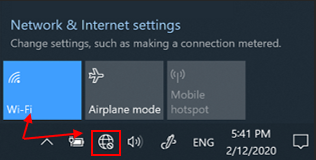
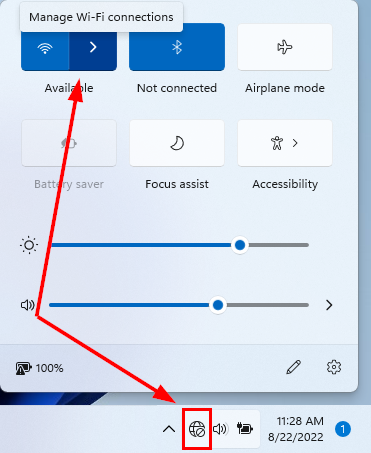
1. From the list of networks, choose Solihull WiFi and press Connect.
2. Tick Connect automatically if you will be using the Wi-Fi regularly.
3. When prompted enter your school username and password and proceed.
4. When asked Continue connecting? click Connect.
Once successful you should see Connected, secured.
Laptops - Apple MacBooks
Click on the Wi-Fi icon in the top right-hand corner of the screen.
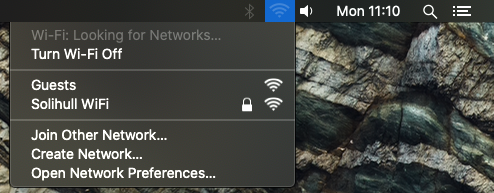
From the list of nearby networks choose Solihull WiFi.
You will be prompted for your school username and password.
When asked to verify the certificate, click Continue.
You may then be asked to approve this system change by entering your local username and password. These are the credentials you use to access your MacBook – NOT your school credentials.
The Wi-Fi icon should now be filled in with a solid colour when successfully connected.
Google Chromebooks
Click the status bar in the bottom right of the screen.

Click on the Wi-Fi icon in the box that pops up to see available networks.
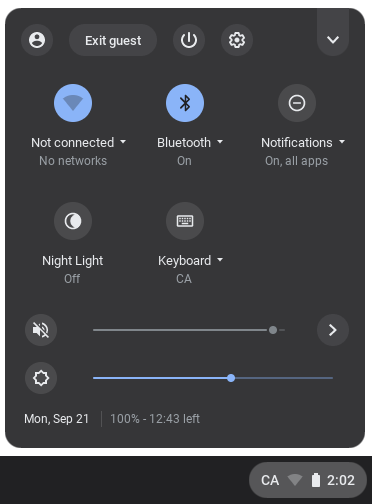
Make sure the Wi-Fi switch is toggled on, and from the list of networks select Solihull WiFi.
When the Join Wi-Fi network box pops up please configure the settings as below:
SSID: Solihull WiFi
EAP method: PEAP
Phase 2 authentication: MSCHAPV2
Server CA Certificate: Do not check
Identity: Your school username
Password: Your school password
Anonymous identity Leave blank
Tick save identity and password if you will be connecting the Wi-Fi regularly.
Then click Connect.
Mobile Phones
iOS
Open the Settings App on your phone.
Select Wi-Fi.
From the list of networks select Solihull WiFi.
When prompted type in your school username and password, then press Join.
When the Certificate screen pops up, press Trust.
The Wi-Fi icon next to Solihull WiFi will change to solid blue when connected.
Android
Open the Settings App on your phone.
Go to Connections, and then Wi-Fi.
From the list of Available networks press Solihull WiFi.
Configure the settings as below: (You may need to press View more to see all settings).
Identity: Your school username
Password: Your school password
CA Certificate: Don’t validate
EAP method: PEAP
Phase 2 authentication: MSCHAPV2
All other settings may be left as they are. Then press Connect.
Was this article helpful?
That’s Great!
Thank you for your feedback
Sorry! We couldn't be helpful
Thank you for your feedback
Feedback sent
We appreciate your effort and will try to fix the article