Sharing Settings Explained
There are three ways in which to enter the share settings for a file or folder.
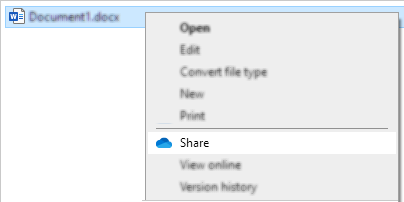
| From Windows Explorer:
Right click the file or folder
Share
|
| From Office 365 on the web (office.com):
Select the three dots next to the file or folder
Click Share
|
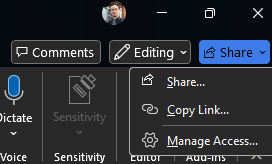
| From an office 365 application such as Word, Excel, Powerpoint:
Click Share in the top right corner
Click Share
|

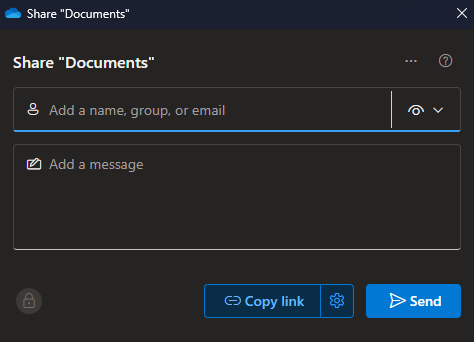
To share with individuals, groups, or all within the Solihull School organisation only.
| In the ‘Add a name…’ box, start typing the names of the individuals or groups that you wish to share with.
Note groups can either be the name of a Team or a distribution group.
Click the down arrow next to the eye icon to set the access level.
Can view – View only (default option).
Can edit – Anyone with the link can make changes.
Can’t download – Can view but cannot download.
Add a message to tell those what it is you are sharing with them.
Then click Send to notify those that they now have access.
|
|
Alternatively, click on the cog icon next to ‘Copy link’ and select ‘People in Solihull School’ to immediately share with all (students and staff) in the school.
Choose the access permissions using the drop down box under ‘More settings’ the three options are the same as listed above.
Then click ‘Apply’
|
| Click ‘Copy link’ which will copy the link to your clipboard, ready to paste into an email, word doc, etc. |


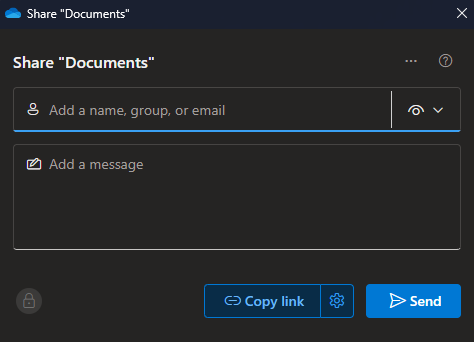
To share with anybody, including those who are external to Solihull School.
|
In this instance, leave the name and message field blank.
Click the cog icon next to ‘Copy link’. |
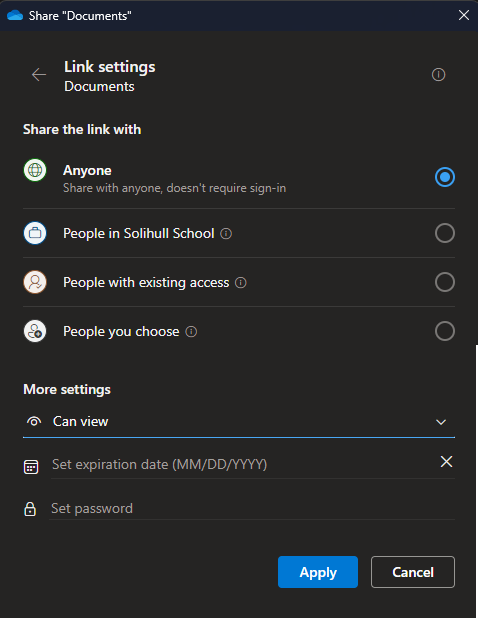
| Then on the following screen select ‘Anyone’.
And then alter ‘More settings’ as necessary.
Can view – View only (default option).
Can edit – Anyone with the link can make changes.
Can’t download – Can view but cannot download.
Set expiration date – choose a date in the future for access to cease.
Set password – choose a password that others will be required to enter for access.
Then click ‘Apply’.
|
| Click ‘Copy link’ which will copy the link to your clipboard, ready to paste into an email, word doc, etc. |

Was this article helpful?
That’s Great!
Thank you for your feedback
Sorry! We couldn't be helpful
Thank you for your feedback
Feedback sent
We appreciate your effort and will try to fix the article