1. Click ‘Collect responses’ in the top right corner
2. Set the appropriate audience for the Form.
Option | Who can respond | Sign in | Record name | Enforce one response per person |
Anyone can respond | Anybody with the response link will be able to fill out the form.
| Sign in NOT required | Names are NOT recorded automatically. A question can ask for a name if required. | Not available |
Only people in Solihull School can respond | Anybody with a solsch.org.uk email address, and the form link can respond to the form.
| Sign in required | If ticked, automatically records respondent’s name. | If ticked, only one response per user permitted. |
Specific people in Solihull School can respond | Only the people or groups that are named in the accompanying text box will be able to respond.
| Sign in required | If ticked, automatically records respondent’s name. | If ticked, only one response per user permitted. |
When sharing a link to respondents, the long URL should include: ‘/ResponsePage’ and NOT ‘/DesignPage’
Response Page Sends the Form to be filled out
Design Page Sends the Editor / View Response link
3. Choose how you want to share the Form.
Copy link |
| Send this URL link out to respondents |
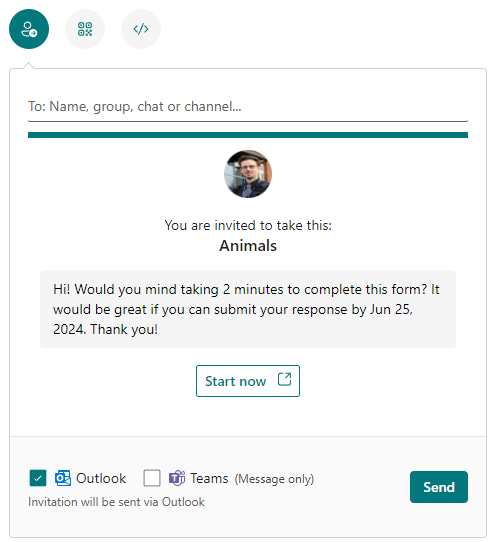
Invitation |
|
Uses Outlook or Teams messages to contact named people or groups with the link. A custom message can be created. |
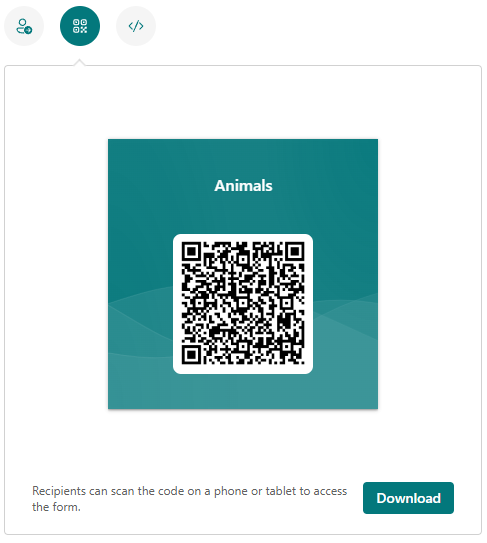
QR Code |
|
Creates a QR code that can be shared for respondents to scan. |
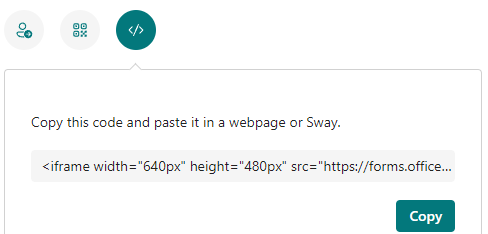
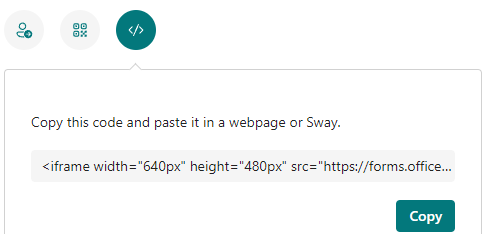
Embed |
|
Creates a code that can be embedded into a webpage or Sway |
Was this article helpful?
That’s Great!
Thank you for your feedback
Sorry! We couldn't be helpful
Thank you for your feedback
Feedback sent
We appreciate your effort and will try to fix the article