If you have recently changed your password, or are having issues with connecting to the Wi-Fi, you may need to forget the Solihull Wi-Fi from your device. Below are steps on how to do so depending on whether you are using Windows, MacOS, iOS, Android.
These guides can be downloaded as .pdfs by using the following links:
Windows
MacOS
iOS
Android
Windows
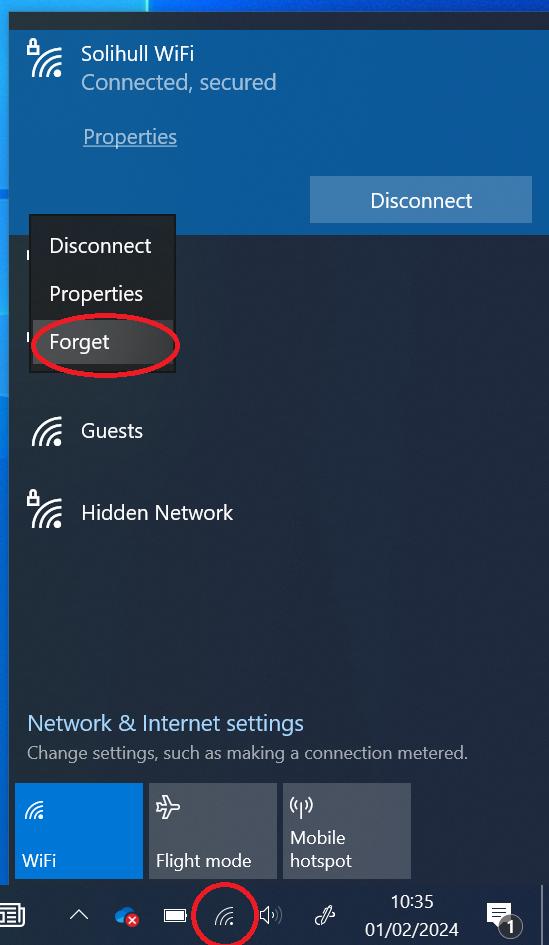
1. Click the Wi-Fi icon in the bottom right corner to bring up a list of networks.
2. Right click on Solihull WiFi.
3. Click Forget.
MacOS
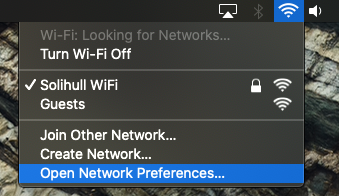
1. Click the Wi-Fi icon in the top right corner of the screen, select Open Network Preferences.
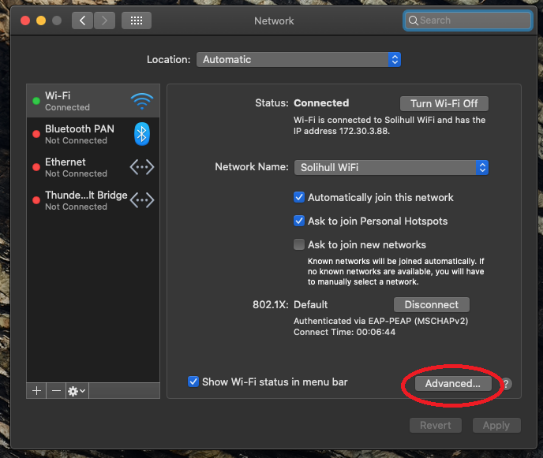
2. Click Advanced.
3. Select Solihull WiFi from Network Name and then click on the minus to remove it.
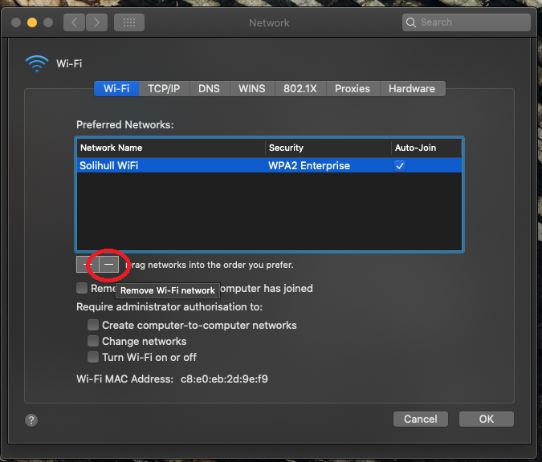
4. Click OK. Then click Apply.
iOS
1. Open the Settings app and then select Wi-Fi.

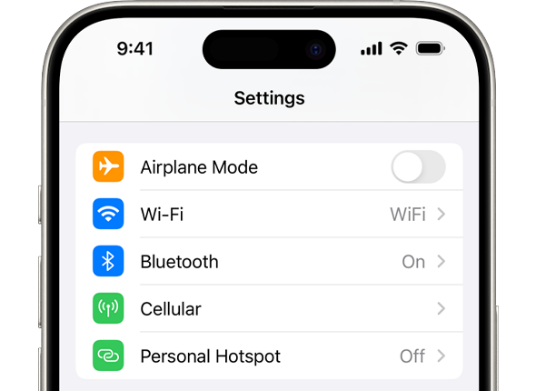
2. Tap the blue i (info) button beside the Solihull Wi-Fi network.
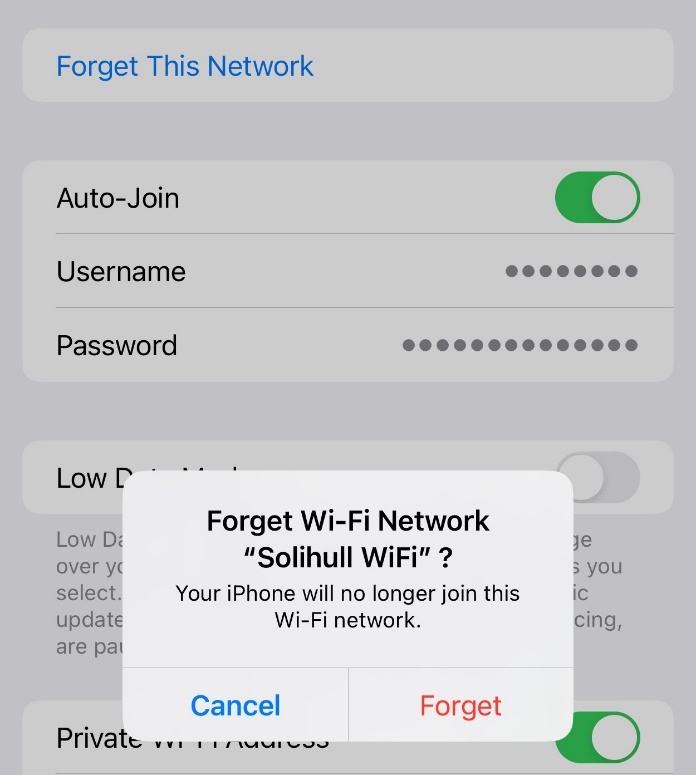
3. Tap Forget This Network, then tap Forget to confirm.
Android
1. Open the Settings app on your phone.

2. Tap Connections, and then tap Wi-Fi.
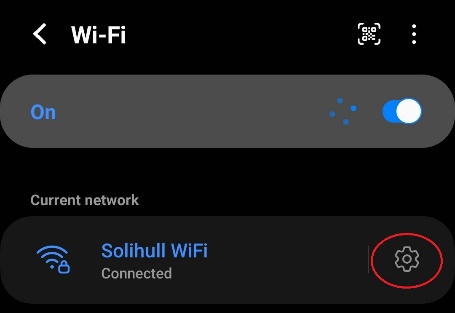
3. Tap the Cog icon next to Solihull WiFi.
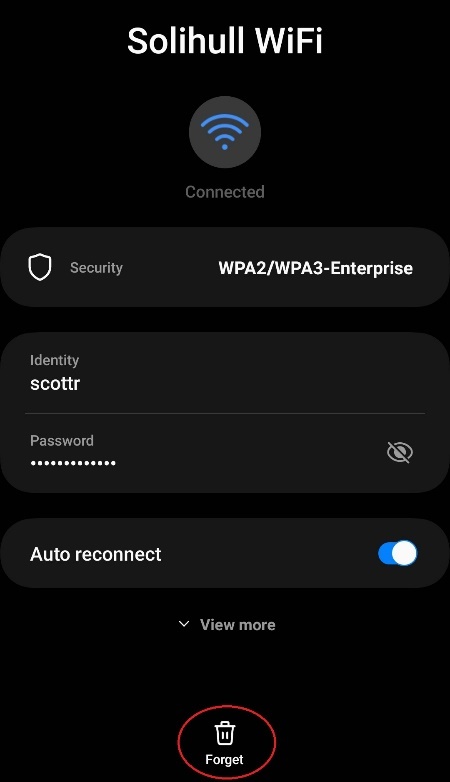
4. Tap Forget at the bottom of the screen.
Was this article helpful?
That’s Great!
Thank you for your feedback
Sorry! We couldn't be helpful
Thank you for your feedback
Feedback sent
We appreciate your effort and will try to fix the article